Setting up an email account in Eudora 6.0
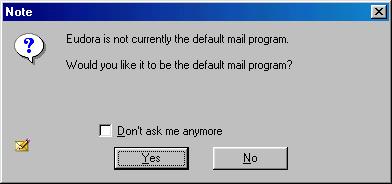
When you run Eudora for the first time it will ask to become your default mail program
Click Yes
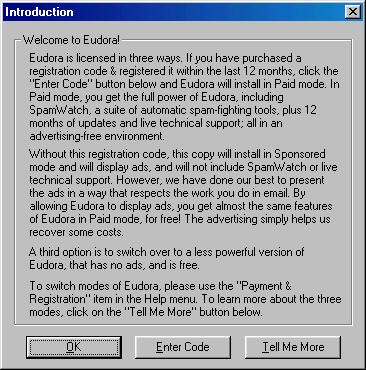
You may now be shown this window, Either click OK or enter a valid license code
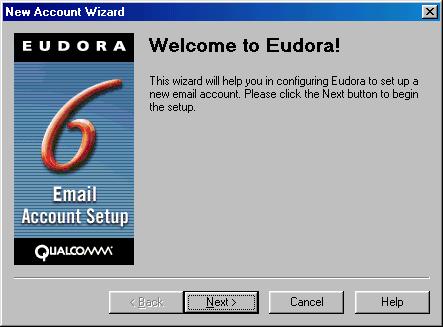
Click Next
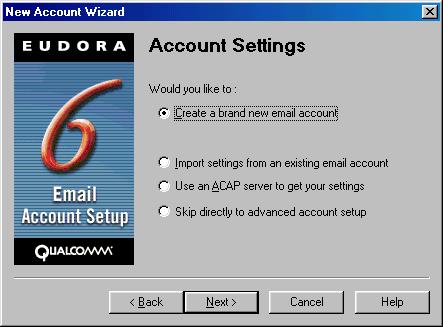
Choose Create a brand new email account
Click Next
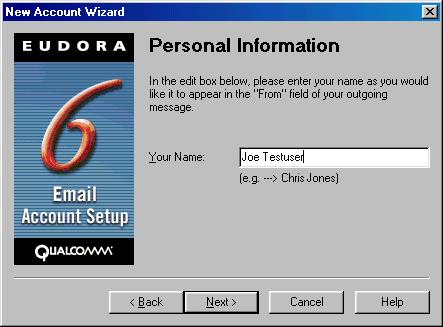
Enter your name as you want it to appear on emails you send.
Click Next
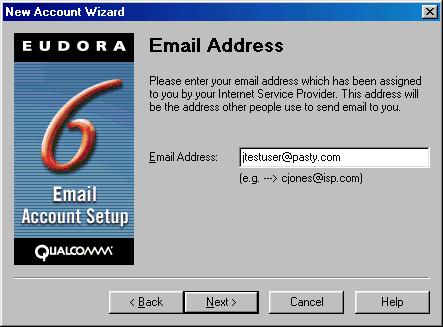
Enter your Email address
Click Next
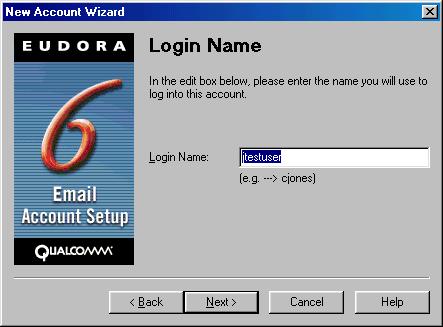
Enter your Login Name (it is usually your email address minus the @ and everything after).
Click Next
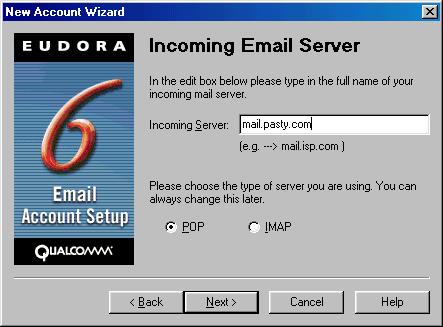
For your Incoming Server enter mail.pasty.com
Make sure POP is selected
Click Next
For your Outgoing Server enter mail.pasty.com
Be sure Allow Authentication is checked
Click Next
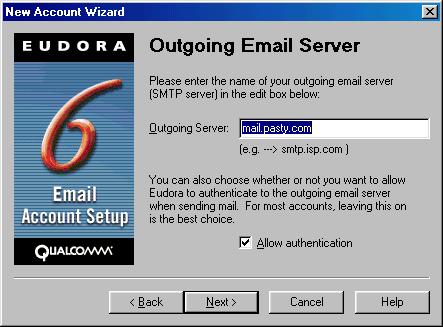
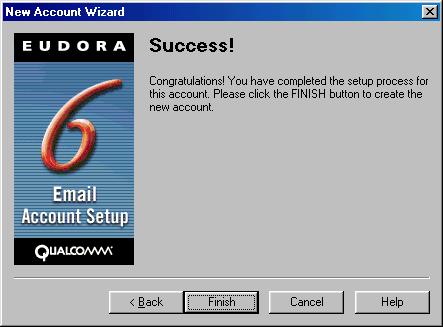
Now the initial setup is done but before you can use the mail server you have to add our secure certificate.
Click Finish and follow the Instructions Below
Choose File from the top menu
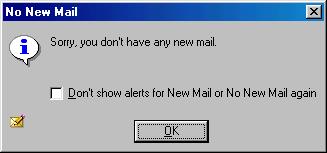
Select Check Mail
When Prompted, Enter your email password (remember passwords are case sensitive).
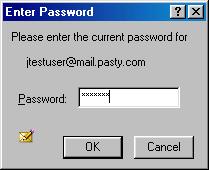
Click Ok
From the top menu choose Tools
Then choose Options...
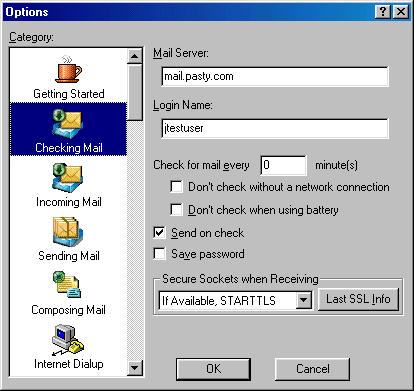
Then Select Checking Mail from the Options Window
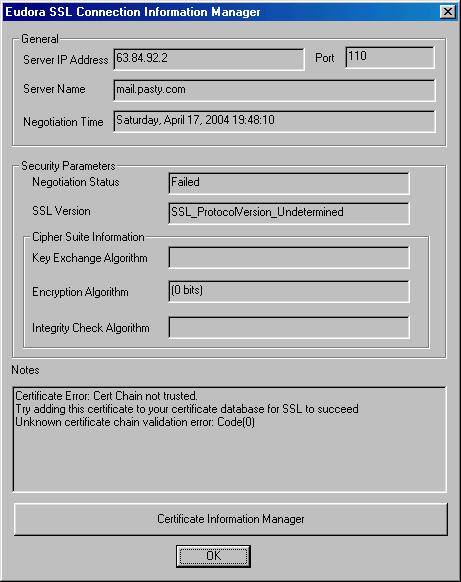
Then click Last SSL Info
Then Click Certificate information manager
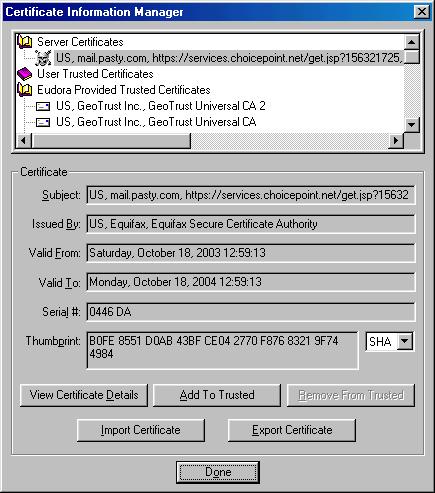
Then Click Add to Trusted
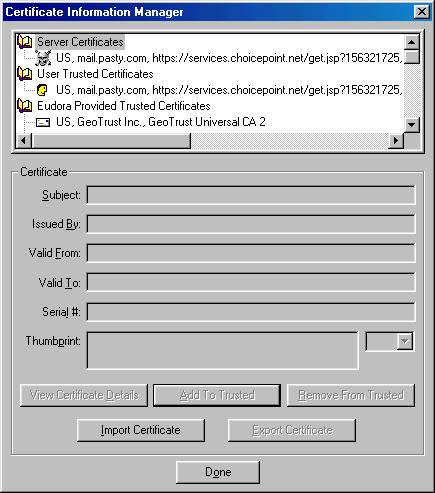
You should now see a listing for our certificate under User Trusted Certificates
Click Done
Click OK
Click OK
Now you are ready to send and receive mail.